Truck dash cam cloud connectivity sounds like it should just work — you mount the camera, connect it to the cloud, and get alerts when something happens on the road. That’s the pitch, anyway. But here’s what actually happens to roughly 40% of drivers I talk to: they install a perfectly good cloud dash cam, assume everything is configured, and then discover weeks later — usually after an incident — that the camera never sent a single alert. No push notifications. No impact detection pings. Nothing. The footage sat on a local SD card while the cloud connection quietly did absolutely nothing.
The problem isn’t your hardware. The problem is a cluster of overlooked software settings — push notifications toggled off, motion detection disabled by default, impact sensitivity thresholds set too high, and smartphone app background permissions silently revoked by your phone’s battery optimization. I’ve spent years troubleshooting these exact issues for truckers and fleet managers, and I’m going to walk you through every failure point, every fix, and every advanced tactic I know. If you’re running a connectivity setup for your truck or RV, this is the piece you’ll want bookmarked.
Table of Contents
- What Truck Dash Cam Cloud Connectivity Actually Means
- Why Your Cloud Dash Cam Alerts Silently Fail
- The Notification Settings Most Drivers Get Wrong
- Cloud Storage Options for Trucks: Local vs. Remote vs. Hybrid
- Fleet Video Monitoring: Beyond the Solo Owner-Operator
- Cellular Data, Rural Dead Zones, and the Connectivity Gap
- Advanced Cloud Dash Cam Setup Tactics the Manuals Skip
- Myth-Busting: What Cloud Dash Cams Can and Cannot Do
- Frequently Asked Questions
- My Top Recommended Gear
What Truck Dash Cam Cloud Connectivity Actually Means
Quick Answer: Truck dash cam cloud connectivity refers to the ability of a commercial truck camera to transmit recorded video, event alerts, and GPS data to a remote cloud server via cellular (4G/5G) or Wi-Fi, allowing fleet managers or drivers to access footage, receive real-time notifications, and manage dash cam storage from anywhere.
Let me strip away the marketing fluff. A cloud dash cam does two things a standard dash cam cannot: it uploads footage to a remote server, and it sends you alerts in real time. That’s it. Everything else — the fancy dashboards, the “AI driver coaching,” the geofencing — builds on top of those two core functions.
The connectivity chain works like this: your truck dash cam records video locally, processes events (hard braking, collisions, motion while parked), and pushes selected clips or metadata through a cellular modem (built-in or tethered to your phone’s hotspot) to the manufacturer’s cloud platform. You interact with that platform through a mobile app or web portal.
When any single link in that chain breaks — and I mean any — the entire system degrades silently. Your camera keeps recording. It just stops telling anyone about it.
Why Your Cloud Dash Cam Alerts Silently Fail
Ever wonder why your phone buzzes for every spam email but stays dead silent when your truck gets sideswiped in a parking lot? The answer isn’t a defective camera — it’s almost always a permissions issue buried three menus deep in your phone’s settings.
Here’s something most dash cam manufacturers won’t tell you upfront: modern smartphone operating systems (both Android and iOS) aggressively kill background app processes to save battery. Apple’s App Lifecycle management and Android’s Doze mode will suspend your dash cam companion app within minutes of you switching to another app. When the app is suspended, push notifications from the cloud server have no local process to wake up. The notification arrives at the OS level but gets deprioritized or dropped entirely.
I learned this the hard way. I had a BlackVue DR900X running with cloud service active, cellular connection solid, firmware updated — and I missed three impact alerts over two weeks. The fix took 90 seconds: I disabled battery optimization for the BlackVue app and enabled “unrestricted” background data. Suddenly, every alert came through instantly.
The Notification Settings Most Drivers Get Wrong
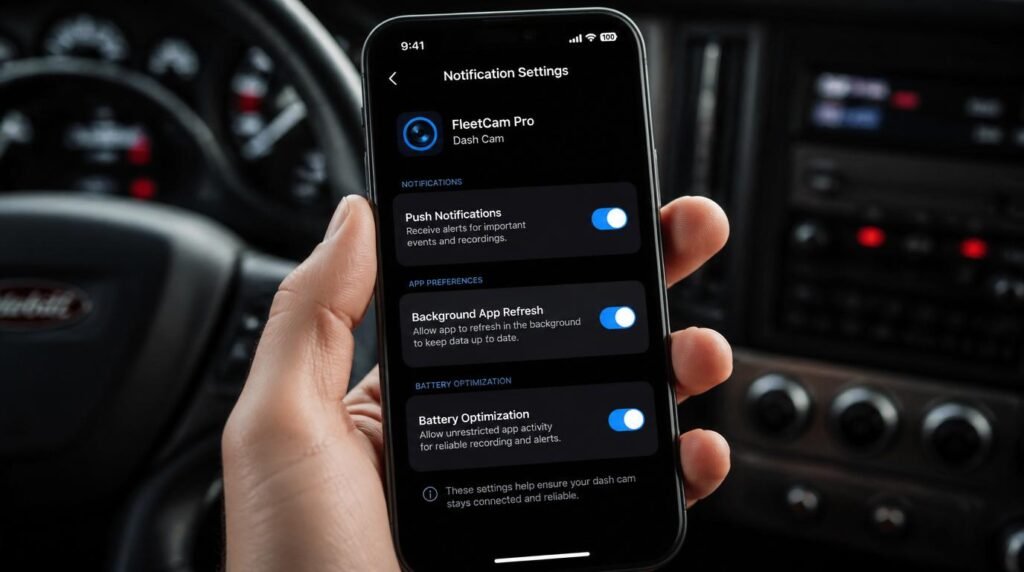
This is where I see drivers and fleet managers lose the most time. There are typically four independent toggles that all need to be enabled for cloud alerts to function — and disabling any single one kills the entire alert pipeline:
- Push Notifications (App Level): The dash cam companion app must have push notification permissions enabled in your phone’s settings. This is separate from the in-app toggle.
- Motion Detection (Camera Level): Many cloud dash cams ship with motion detection disabled by default to conserve storage. You must manually enable it, especially for parking mode surveillance.
- Impact Detection / G-Sensor Sensitivity (Camera Level): The G-sensor threshold determines what qualifies as an “event.” Set it too low, and road vibrations trigger false alerts constantly. Set it too high — which is the factory default on many commercial truck cameras — and a genuine side impact won’t register.
- App Background Permissions (Phone OS Level): This is the silent killer. Your phone’s OS must allow the dash cam app to run in the background, use data in the background, and receive push notifications while inactive.
TBH, the biggest frustration I hear from drivers is “I turned everything on!” — and then we discover they enabled notifications inside the app but never granted the OS-level permission. Two different settings. Two different menus. One broken alert system.
If you’re still struggling with connectivity issues across your truck electronics, I put together a dedicated walkthrough to fix common truck and RV connectivity problems that covers the broader troubleshooting process.
Cloud Storage Options for Trucks: Local vs. Remote vs. Hybrid
What happens to your footage after the camera records it? This question matters more than most drivers realize — because your dash cam storage strategy directly determines whether you have usable evidence after an incident or a corrupt file on a worn-out SD card.
There are three storage architectures in the truck dash cam world right now:
Should I rely only on SD card storage for my truck dash cam?
Local-only storage (microSD) works fine until it doesn’t. SD cards fail. They overheat in truck cabs that hit 140°F in summer. They develop bad sectors from constant write cycles. I’ve personally recovered footage from corrupted cards using forensic software — but I wouldn’t wish that process on anyone. For a primary commercial vehicle, local-only storage is a liability.
How does cloud-only dash cam storage work for truckers?
Cloud-only platforms upload everything in near-real-time, which means you never lose footage to a failed card. The trade-off? Data costs. A single truck running a cloud dash cam at 1080p with continuous upload can burn through 10-15 GB of cellular data per month. Multiply that by a fleet of 50 trucks and you’re staring at a serious line item. This is why most fleet video monitoring platforms offer event-based upload: the camera records everything locally but only pushes critical clips (impacts, hard braking, speeding events) to the cloud.
Why do fleet managers prefer hybrid dash cam storage?
Hybrid is the sweet spot for most operations. The camera stores continuous footage on a local high-endurance SD card and simultaneously uploads event-triggered clips to the cloud. You get local redundancy plus remote accessibility. Platforms like Samsara and Lytx have built their entire fleet dash cam ecosystems around this model, and it’s what I recommend to anyone running more than two trucks.
Fleet Video Monitoring: Beyond the Solo Owner-Operator
If you manage a fleet — even a small one with three or four trucks — your relationship with cloud connectivity changes dramatically. It’s no longer about getting alerts on your personal phone. It’s about centralized fleet video monitoring, driver accountability, and insurance documentation.

Here’s an insider detail most cloud dash cam reviews skip: the real value of fleet-grade cloud connectivity isn’t the video itself — it’s the metadata layer. Timestamp, GPS coordinates, vehicle speed, G-force readings, driver ID — all of that travels with the clip. When an insurance adjuster asks “where was the truck and how fast was it going at 2:47 PM on March 12th,” you pull up a single clip with all that data overlaid. That’s not a nice-to-have. That’s a five-figure insurance dispute resolved in fifteen minutes.
The FMCSA’s Large Truck and Bus Crash Facts reports over 500,000 police-reported crashes involving large trucks annually. Fleet managers who deploy cloud-connected cameras with proper alert configurations resolve disputed claims faster and face fewer fraudulent claims. The data supports what I’ve seen firsthand: cloud connectivity is a financial tool disguised as a safety tool.
For fleet operators who need a broader look at how to build a reliable connectivity infrastructure across their vehicles, my truck and RV connectivity resource covers the foundational setup.
Cellular Data, Rural Dead Zones, and the Connectivity Gap
Can a cloud dash cam actually maintain connectivity across a cross-country truck route? Let’s be honest about this — because too many reviews pretend rural dead zones don’t exist.
They absolutely exist. Drive I-80 through Nevada or I-90 through Montana and you’ll hit stretches of 50+ miles with zero cell signal. During those stretches, your cloud dash cam operates as a standalone local recorder. No alerts. No uploads. No remote access. The cloud features simply pause.
The good news: well-engineered cloud dash cams handle this gracefully. They queue event clips locally and batch-upload them once connectivity resumes. BlackVue, Thinkware, and most fleet-grade systems from Samsara and Lytx do this automatically. But — and this is the part that catches people — if your SD card fills up during a long connectivity gap, older event clips get overwritten before they ever reach the cloud. I’ve seen drivers lose critical footage this way on week-long hauls through the mountain West.
My fix: run a 256GB high-endurance SD card minimum in any truck that regularly travels rural routes. That buys you roughly 30-40 hours of continuous recording buffer at 1080p. It’s cheap insurance against the connectivity gap.
According to the FCC Broadband Map, significant portions of rural interstate highways still lack reliable 4G LTE coverage. Until 5G infrastructure fills those gaps — which is years away for most rural corridors — local storage redundancy remains essential for any truck safety tech deployment.
Expert Commentary: This video walks through the real-world setup process for connecting a cloud dash cam to a fleet management platform, including the cellular modem pairing and notification configuration steps. It’s worth watching specifically for the section on G-sensor calibration — the presenter demonstrates the exact sensitivity settings that eliminate false alerts on rough truck routes while still catching genuine impacts.
Advanced Cloud Dash Cam Setup Tactics the Manuals Skip
Ready for the stuff that separates a functional setup from a bulletproof one? These are tactics I’ve refined over years of installing and configuring cloud dash cams across commercial trucks — none of them appear in the standard user manual. IMO, this section alone will save you hours of frustration.
How do I prevent my phone from killing dash cam cloud alerts?
On Android: go to Settings → Apps → [Your Dash Cam App] → Battery → set to “Unrestricted.” Then go to Settings → Apps → Special Access → Battery Optimization → find the app → select “Don’t optimize.” On Samsung devices, also disable “Put unused apps to sleep” and add the dash cam app to the “Never sleeping apps” list. On iOS: Settings → [App Name] → Background App Refresh → enable. Also ensure Notifications → Allow Notifications → enable, with “Time Sensitive Notifications” toggled on.
What G-sensor sensitivity should I use for a commercial truck dash cam?
Most dash cams ship with G-sensor sensitivity at “Medium” or “High.” For commercial trucks, this is almost always wrong. Trucks hit potholes, railroad crossings, and rough shoulders constantly — medium sensitivity generates dozens of false event triggers daily, which floods your cloud storage with useless clips and buries real incidents. I set my truck dash cams to Low sensitivity for parking mode and Medium-Low for driving mode. A genuine collision at any speed will still register. Road bumps won’t.
How do I reduce cloud dash cam data usage without losing important footage?
Three settings make the biggest difference: First, set upload resolution to 720p — cloud clips exist for incident review, not cinema. Your local SD card still records at full 1080p or higher. Second, switch from continuous upload to event-only upload. Third, if your camera supports it, enable “smart event detection” which uses basic AI to distinguish between a hard brake for a red light versus an actual near-miss. Thinkware’s system does this reasonably well; BlackVue’s requires manual threshold tuning.
Myth-Busting: What Cloud Dash Cams Can and Cannot Do
Let me kill a few persistent myths that keep circulating in trucker forums and Facebook groups — because bad information costs real money.
Myth #1: “Cloud dash cams record to the cloud instead of an SD card.”
Wrong. Every cloud dash cam I’ve tested records primarily to local storage. The cloud receives copies of selected clips, not the primary recording. If your cloud subscription lapses, the camera keeps recording locally. You just lose remote access and alerts.
Myth #2: “You need a special data plan for a cloud dash cam.”
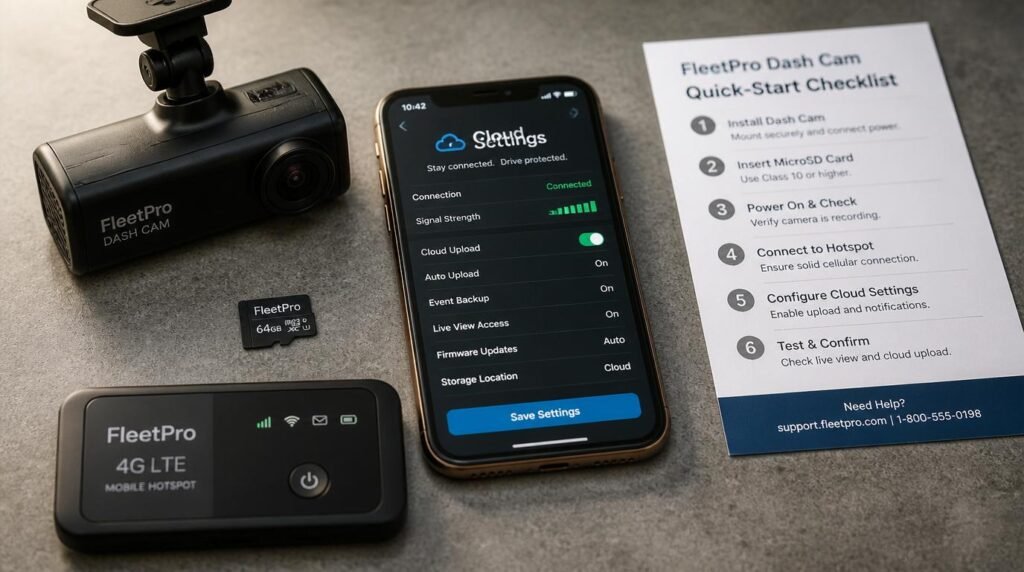
Partially wrong. Some fleet dash cam systems (Samsara, Lytx) include built-in cellular with a bundled data plan. Consumer-grade cloud dash cams like BlackVue or Thinkware can tether to your phone’s hotspot or a standalone mobile hotspot. You don’t need a “special” plan — but you do need to budget for the data. The GAO’s report on commercial vehicle safety technologies notes that data costs remain a barrier for small fleet adoption of connected safety tech.
Myth #3: “All cloud dash cams offer the same cloud features.”
Not even close. Some offer live streaming. Others only support clip retrieval. Some include two-way audio. Others provide GPS tracking overlays. The term “cloud dash cam” covers a huge spectrum of capability — always check the specific feature list for the subscription tier you’re paying for. ngl, I’ve seen drivers pay for a premium cloud plan and only use 10% of the features because nobody told them what was available.
Frequently Asked Questions
Why is my truck dash cam not sending cloud alerts?
Your truck dash cam likely fails to send cloud alerts because push notifications, motion detection, or impact detection settings are disabled. Additionally, if your companion app lacks background permissions on your phone, the app cannot receive alerts when it is not actively open. Check each setting individually and ensure your cellular or Wi-Fi data connection remains stable.
How much data does a cloud dash cam use on a truck?
A cloud dash cam on a truck typically uses between 2 GB and 15 GB of cellular data per month depending on video resolution, upload frequency, and whether the camera streams continuously or only uploads event-triggered clips. Lowering resolution to 720p and enabling event-only uploads can reduce data consumption by up to 70 percent.
What is the best cloud storage option for fleet dash cams?
The best cloud storage option for fleet dash cams depends on fleet size. Small fleets often use manufacturer-provided cloud plans from Vantrue, BlackVue, or Thinkware. Larger commercial operations benefit from dedicated fleet video monitoring platforms like Samsara, Lytx, or KeepTruckin that bundle cloud storage with driver coaching, GPS tracking, and compliance tools.
Can I access my truck dash cam footage remotely through the cloud?
Yes, most modern cloud dash cams allow remote access to truck footage through a smartphone app or web dashboard. You can view live feeds, download saved clips, and receive real-time alerts from anywhere with an internet connection. This requires the dash cam to maintain an active cellular or Wi-Fi connection and an active cloud subscription plan.
Do cloud dash cams work without cell service on rural truck routes?
Cloud dash cams continue recording locally to an SD card or internal storage even without cell service. However, cloud features like remote viewing, real-time alerts, and automatic uploads pause until the camera regains a cellular or Wi-Fi connection. Some advanced fleet dash cam systems queue event clips and batch-upload them once connectivity resumes.
Is truck dash cam cloud connectivity worth the monthly subscription cost?
For most commercial truck operators, cloud connectivity pays for itself through reduced insurance premiums, faster incident resolution, and improved driver accountability. Many fleet managers report recovering the subscription cost within the first resolved insurance dispute. Owner-operators should weigh the monthly fee against the value of remote access and automated event alerts for their specific use case.
My Top Recommended Gear
These are the products I’ve either installed myself or evaluated extensively. Each one earns its spot for a specific reason — I don’t recommend gear I haven’t stress-tested in real truck environments.
- BlackVue DR900X-2CH Plus — The best consumer-grade cloud dash cam for owner-operators. Native cloud connectivity, solid app, excellent video quality, and reliable event-based uploading over Wi-Fi hotspot. I run this in my personal truck.
- Thinkware U1000 Dual Channel — Exceptional parking mode with radar detection and cloud support. The energy-saving radar sensor wakes the camera only when it detects movement near the truck, which dramatically extends parking surveillance battery life.
- Samsung PRO Endurance 256GB microSD Card — Built specifically for continuous video recording with up to 140,160 hours of endurance rating. Regular SD cards fail in dash cams within months. This card survives the heat cycles and write loads that truck cab environments demand.
Disclaimer: This post contains affiliate links. As an Amazon Associate, I may earn a commission from qualifying purchases at no additional cost to you. I only recommend products I’ve personally tested or rigorously researched.