I
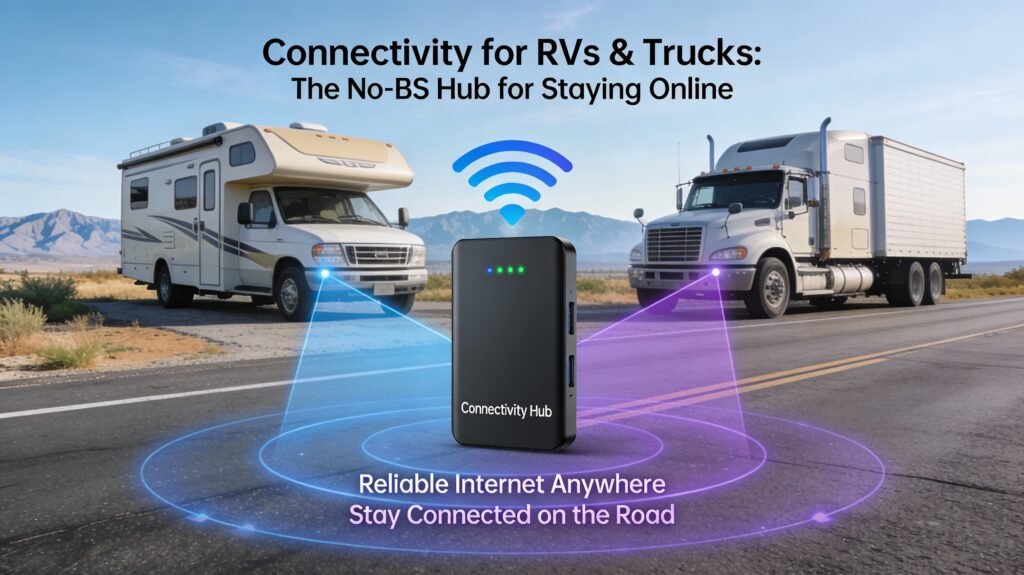
Connectivity for RVs & Trucks: The No-BS Hub for Staying Online
f you’re here, you’re not asking “what is Wi-Fi?” You’re asking: how do I stay reliably connected while parked, moving, boondocking, stuck in a metal box, and surrounded by trees that hate your signal?
This hub is your connectivity command center for RVs, vans, overland rigs, and sleeper cabs. It’s built around outcomes: stable work calls, consistent uploads, streaming that doesn’t buffer like it’s 2009, and a setup that doesn’t fall apart the moment you leave a city.
The core truth: most “bad internet on the road” isn’t caused by buying the wrong router. It’s caused by building the wrong system—bad RF decisions, one-carrier gambling, sloppy antenna placement, cheap coax runs, and no plan for congestion or dead zones.
Let’s fix it like adults.
Quick Start (pick your pain):
- I need the “just tell me what to buy” answer
- I want to understand the system model (so I stop wasting money)
- Give me proven build blueprints by budget and lifestyle
- My setup exists, but it’s unreliable (diagnose it fast)
Table of Contents
- 1) Quick Answer: What Actually Works
- 2) Your Site’s Core Connectivity Guides (Start Here)
- 3) The Connectivity System Model (Signal → WAN → LAN → Devices)
- 4) RF Reality: Coverage, Bands, Congestion, and Why Your Bars Lie
- 5) Hardware Stack: Hotspot vs Router vs Starlink (and the real tradeoffs)
- 6) Antennas: The Unsexy Upgrade That Fixes Most Builds
- 7) Signal Boosters: When They Help, When They Hurt, and Legal Basics
- 8) Plans & SIM Strategy: Don’t Get Throttled Into the Stone Age
- 9) Redundancy: Dual-Carrier, Failover, Bonding, and “Work-Grade” Internet
- 10) Starlink & Satellite: Where It Wins and Where It’s a Headache
- 11) Inside the Rig: Wi-Fi Design, Mesh Myths, and LAN Stability
- 12) Security & Remote Work: VPN, Segmentation, and “Stop Broadcasting Yourself”
- 13) Installation Rules: Mounting, Coax, Power Noise, and Weatherproofing
- 14) Troubleshooting: The Fast Diagnostic Flow That Finds the Real Problem
- 15) Buyer Guide: What to Spend On vs Where to Save
- 16) FAQ: Connectivity
- 17) Authority References
1) Quick Answer: What Actually Works
If you want reliable connectivity in an RV or truck, the winning formula is usually:
- A real cellular router (not just a phone hotspot) with stable WAN logic
- A roof-mounted MIMO antenna with short, low-loss coax runs
- Two independent internet paths when income depends on uptime (dual carriers or cellular + Starlink)
- Clean internal Wi-Fi design so your “internet problems” aren’t actually your weak LAN
Reality check: No single product guarantees internet everywhere. But a properly designed system can turn “random and frustrating” into “predictable and manageable.”
For the detailed gear comparison and why some brands are better for humans vs fleets, your best internal deep dive is here: Best 5G Routers for Van Life & Trucking (Peplink vs. Cradlepoint).
2) Your Site’s Core Connectivity Guides (Start Here)
This hub is the “big map.” These are your “execution pages.” If a reader wants to go from theory → build, these four internal links do the heavy lifting:
- Foundation (full system overview): Mobile Internet for RVs & Trucks: The Complete Guide
- Router decision + real differences: Best 5G Routers for Van Life & Trucking (Peplink vs. Cradlepoint)
- Category overview page (topline strategy): Truck & RV Connectivity: Your Rig’s Ultimate Defense
- Fast troubleshooting (fix it today): Fix Your Truck & RV Connectivity Today
Now let’s build the master connectivity hub that connects all of this into one “decision framework” page.
3) The Connectivity System Model (Signal → WAN → LAN → Devices)
If you only remember one idea from this hub, remember this:
Your internet experience is a chain. The chain is only as good as the weakest link. Buying a premium router doesn’t help if you feed it garbage signal. And boosting your signal doesn’t help if your internal Wi-Fi is overloaded or your plan is deprioritized into a crawl.
Here’s the chain:
- RF Signal Layer (what your antennas can “hear” from the outside world)
- WAN Layer (cellular/Starlink/hotel Wi-Fi as your upstream internet)
- Router Intelligence (failover, bonding, QoS, VPN, firewall)
- LAN / Wi-Fi Layer (how you distribute internet inside the rig)
- Devices + Usage (Zoom calls, uploads, streaming, gaming, ELD, IoT)
Most people incorrectly diagnose the problem. They assume it’s WAN (the carrier) when it’s actually LAN (their rig Wi-Fi is trash), or they assume it’s the router when it’s actually RF (their antenna placement is basically self-sabotage).
Pro move: Troubleshoot in the same order every time. Start at the signal layer, confirm WAN performance, then confirm LAN performance, then test devices. This prevents the classic cycle of “buy new gear → feel better for a week → hate your life again.”
4) RF Reality: Coverage, Bands, Congestion, and Why Your Bars Lie
The road is brutal for wireless. You’re moving between towers, terrain, and congestion patterns that change hour-by-hour.
Bars are emotional support, not data
Your phone can show “good bars” and still deliver weak usable performance if:
- the tower is congested
- your plan is deprioritized
- your signal quality is noisy (bad SINR) even if raw power looks decent
- you’re connected to a band that looks strong but performs poorly
What matters more than bars: stability, latency, and consistent throughput over time.
Coverage vs landmass (the trap)
Carriers can cover “most people” while still leaving huge stretches of land weak. RVers and truckers experience land, not population density. That’s why you can have “great coverage” on paper and still hit dead zones in the real world.
Congestion is the silent killer
Busy campgrounds, truck stops, events, and tourist zones create high tower load. Your gear didn’t suddenly become bad. The RF environment got crowded. This is why redundancy and smart routing logic matter: you’re trying to route around failure modes, not win arguments with physics.
5) Hardware Stack: Hotspot vs Router vs Starlink (and the real tradeoffs)
Most connectivity setups fall into one of three stacks. Each has a “best use case” and a “pain profile.”
Stack A: Phone hotspot (entry-level, limited, fragile)
Good for: weekend trips, backup connectivity, light work.
Bad for: full-time remote work, consistent uploads, multi-device rigs.
Why it fails: phones overheat, hotspot caps exist, antennas are tiny, and you have almost zero control over WAN logic.
Stack B: Dedicated hotspot device (better, still limited)
Good for: portable use, a second line, temporary builds.
Bad for: “my income depends on uptime.”
Some hotspots can be strong, but you still lack robust routing intelligence, clean external antenna integration, and proper failover behavior.
Stack C: Cellular router + external antenna (the grown-up baseline)
Good for: full-timers, truckers, creators, remote workers, families.
Bad for: people who refuse to install anything.
This stack wins because it solves the actual problem: it increases RF performance through better antennas and gives you routing logic (failover, dual WAN, QoS, and stability). Your internal post breaks the decision clearly here: Mobile Internet for RVs & Trucks: The Complete Guide.
6) Antennas: The Unsexy Upgrade That Fixes Most Builds
If your router lives inside a vehicle, it lives inside a metal and glass RF penalty box. That means antenna design and placement are not “nice-to-have.” They’re the difference between “usable” and “rage-quit.”
Why roof mounting wins
- Higher elevation = better line-of-sight and less signal shadowing
- Less attenuation than putting the radio behind tinted glass or inside cabinets
- More consistent performance while moving
MIMO matters
Modern LTE/5G performance relies heavily on multiple antennas and streams. A proper MIMO antenna designed for cellular frequencies gives your router the best chance to maintain throughput and stability.
Coax and cable runs: death by a thousand cuts
Every extra foot of coax adds loss. Cheap cable, sloppy connectors, and long runs quietly erase the gains you paid for. This is the part people ignore because it’s boring. It’s also why their “premium router” performs like a budget hotspot.
Practical antenna rules
- Mount high and clear (roof beats window; center-ish beats edge in many rigs)
- Keep coax runs short and clean
- Weatherproof properly (water intrusion ruins more installs than bad brands)
- Avoid mounting next to high-noise electronics where possible
Your router comparison post makes the antenna point bluntly (because it’s true): Best 5G Routers for Van Life & Trucking (Peplink vs. Cradlepoint).
7) Signal Boosters: When They Help, When They Hurt, and Legal Basics
Signal boosters are a tool. They are not magic. And using them incorrectly can actively make your setup worse.
What boosters are actually for
A typical consumer booster is designed to improve signal in a limited area by amplifying the cellular signal between your device and the network. The FCC’s consumer signal booster guidance is the credibility baseline for what these devices are and how they’re intended to be used. FCC: Consumer Signal Boosters.
Booster vs external antenna on a router
Here’s where people blow money: if you’re running a cellular router with proper external antenna ports, a high-quality roof MIMO antenna often solves the problem more cleanly than a booster.
Boosters shine when:
- you need stronger signal for phones inside the rig
- you can’t use external antenna ports (device limitation)
- you have weak but present signal and need it amplified for voice/text reliability
Boosters can disappoint when:
- you’re in a true dead zone (no signal to amplify)
- the area is congested (booster can’t create tower capacity)
- the booster is installed poorly and oscillates or adds noise
Legal/technical baseline (don’t wing this)
If you want the regulatory text for signal booster behavior (including interference mitigation expectations), the federal rule reference is here: 47 CFR § 20.21 (Signal Boosters).
8) Plans & SIM Strategy: Don’t Get Throttled Into the Stone Age
Hardware is only half the story. Your plan determines whether your “5G router” runs like a rocket or like a sad dial-up reenactment.
Deprioritization: the thing carriers don’t advertise loudly
Many “unlimited” plans are unlimited until they aren’t. After a threshold (or in congestion), you get deprioritized. In busy areas, that can turn your speeds into soup.
Two-carrier strategy (the highest ROI move)
If work depends on connectivity, stop betting your income on one carrier. Run:
- Primary SIM on Carrier A
- Backup SIM on Carrier B (different network)
This is the single most consistently effective redundancy tactic for mobile users.
SIM management discipline
- Know your plan caps and throttling rules
- Track data consumption (video calls + cloud sync add up fast)
- Use WAN priority rules (work traffic gets first-class, streaming gets economy)
9) Redundancy: Dual-Carrier, Failover, Bonding, and “Work-Grade” Internet
There’s “internet that loads TikTok” and there’s “internet that keeps a Zoom call alive while moving.” Those are different jobs.
Failover (good, common, not magic)
Failover means the router switches from WAN1 to WAN2 when WAN1 fails. This is great for browsing and general use. It’s less great for real-time work because switching can break sessions.
Bonding / hot failover (the upgrade when sessions matter)
Bonding tries to keep sessions alive by distributing traffic across multiple links or managing transitions more gracefully. This can be a serious advantage for remote work and live operations, but it often requires ecosystem support or endpoints.
Your router comparison post addresses this in practical terms (and calls out the licensing/enterprise angle without sugarcoating): Peplink vs. Cradlepoint. :contentReference[oaicite:9]{index=9}
The professional stack (if you earn money online)
- Cellular router with dual SIM (two carriers)
- External roof MIMO antenna
- Starlink as secondary WAN where towers fail (optional but powerful)
- WAN rules: prioritize stable work traffic; push bulk downloads to cheaper/faster link
10) Starlink & Satellite: Where It Wins and Where It’s a Headache
Starlink changed the game for off-grid users. It’s also not a universal replacement for cellular.
Where Starlink wins
- remote areas with weak or nonexistent cellular coverage
- consistent throughput in many non-congested regions
- backup path that diversifies your failure modes
Where Starlink can be annoying
- needs a clear view of the sky; trees can ruin your day
- power draw is not tiny (important for boondockers)
- weather and obstructions can create instability
If you want the full “real-world” decision map, your internal complete guide covers Starlink in the context of the whole system, not as a gimmick: Mobile Internet for RVs & Trucks: The Complete Guide.
11) Inside the Rig: Wi-Fi Design, Mesh Myths, and LAN Stability
Here’s a spicy truth: a shocking number of “internet problems” are actually Wi-Fi problems.
Rig Wi-Fi killers
- router buried in a cabinet behind appliances and wiring
- multiple “extenders” fighting each other (channel chaos)
- 2.4 GHz overcrowding in campgrounds (and your gear auto-selecting badly)
- metal walls and appliance cavities creating dead spots
Simple Wi-Fi design that works
- place the router centrally and high-ish inside the rig when possible
- prefer 5 GHz for performance when range allows; keep 2.4 GHz for reach/IoT
- avoid stacking random extenders; if you need more coverage, use a clean access point strategy
Operational mindset: treat your LAN like a small office. Because that’s what it is now.
12) Security & Remote Work: VPN, Segmentation, and “Stop Broadcasting Yourself”
If you work from the road, connectivity includes security. Campground Wi-Fi, truck stop Wi-Fi, and random public networks are not your friends.
Baseline security moves
- use a reputable VPN when on public Wi-Fi (or tunnel back to a trusted endpoint)
- keep router firmware updated (yes, actually)
- disable remote admin unless you truly need it
- use strong unique passwords (not “RV12345”)
Segmentation for sanity
If your router supports it, separate networks:
- Work devices (laptops, primary phones)
- Entertainment (TV, tablets, consoles)
- IoT/gear (smart devices, cameras, etc.)
This reduces interference, reduces risk, and makes troubleshooting easier.
13) Installation Rules: Mounting, Coax, Power Noise, and Weatherproofing
Great gear installed badly becomes average gear. Average gear installed well becomes reliable gear.
Mounting and vibration
Vehicles vibrate. A lot. If you mount your router like a desk accessory, it will eventually punish you.
- mount securely with airflow
- strain-relief cables so connectors aren’t taking mechanical load
- avoid crushing coax bends and tight radiuses
Power quality matters
Dirty power and voltage dips can cause reboots, glitches, and “it randomly dies” behavior. If your router or Starlink reboots when something else turns on, that’s not “bad internet.” That’s bad electrical integration.
Weatherproofing antennas (don’t trade bandwidth for leaks)
- seal roof penetrations correctly
- use proper grommets and cable routing
- inspect annually (sun + vibration degrade seals)
If you want the broader “install discipline” mindset across the rig, your DIY install hub is a strong supporting page (even though it’s not purely connectivity): RV DIY & Installation Guides for Safe, Clean Upgrades.
14) Troubleshooting: The Fast Diagnostic Flow That Finds the Real Problem
This is how you stop guessing.
Step 1: Confirm the WAN (not the Wi-Fi)
Test performance directly from the router admin panel if possible, or via an Ethernet-connected device. If Ethernet is stable but Wi-Fi is unstable, your WAN is fine and your LAN needs work.
Step 2: Confirm RF quality
Check signal quality metrics (not just bars). If your SINR is awful, you’re in noise land. Improve antenna placement, move the rig, or switch carriers.
Step 3: Test congestion patterns
If you’re fast at 7am and slow at 8pm, that’s congestion. The fix is redundancy, plan priority, or changing your location—not swapping routers like a gambler.
Step 4: Verify plan behavior
Are you throttled? Deprioritized? Out of high-speed data? Check your carrier portal and your usage.
Step 5: Eliminate internal interference
Move router position, adjust channels, separate networks, reduce extender chaos, and stop burying the router in a cabinet next to high-noise electronics.
If you want the practical, “fix it today” version of this logic tailored to your audience, send them here: Fix Your Truck & RV Connectivity Today.
Build Blueprints (Copy/Paste Setups That Don’t Flake Out)
Use these as your default templates. Match the blueprint to your lifestyle and risk tolerance.
Blueprint A: Budget Reliable (Weekend + Light Work)
- phone hotspot or dedicated hotspot as primary
- backup SIM on a second carrier (phone plan)
- simple internal Wi-Fi discipline (router placement if using a hotspot-router combo)
Best for: weekenders, light emails, occasional calls.
Known limit: when you hit weak signal or congestion, you’ll feel it.
Blueprint B: Full-Timer Baseline (Cell Router + Roof MIMO)
- cellular router with external antenna ports
- roof-mounted MIMO antenna
- one strong plan with enough priority/data for your real usage
- LAN tuned for the rig (not random extenders)
Best for: full-timers, families, creators who need stable everyday internet.
Upgrade trigger: if you earn money online, go to Blueprint C.
Blueprint C: Income-Depends-On-It (Dual Carrier + Smart WAN)
- router that supports dual SIM / multi-WAN logic
- Carrier A + Carrier B SIMs
- roof MIMO antenna
- WAN rules (work traffic prioritized; streaming de-prioritized)
Best for: remote workers, dispatch-heavy operations, uploaders, live operators.
Blueprint D: Off-Grid & Weird Places (Cellular + Starlink)
- cellular router as primary “mobility WAN”
- Starlink as secondary “coverage gap” WAN
- router manages WAN priority/failover
Best for: boondockers, rural routes, deep travel.
For the “brand and model” decision-making inside these blueprints, keep routing readers to your gear comparison: Best 5G Routers for Van Life & Trucking (Peplink vs. Cradlepoint).
15) Buyer Guide: What to Spend On vs Where to Save
Spend your money here (high leverage)
- External antenna quality + correct install
- Router stability and WAN logic (especially if you need failover)
- Redundancy (second carrier or second WAN path)
Be strategic here (good-enough is fine)
- internal Wi-Fi accessories (don’t overbuy; design cleanly)
- mounting hardware (buy solid, not flashy)
Where people waste money
- buying “more powerful” routers while using terrible antennas
- buying a booster when what they need is a router + MIMO antenna (or vice versa)
- paying for “unlimited” plans that throttle under real use
- stacking extenders and calling it a network
16) FAQ: Connectivity
Do I need Starlink if I have a good 5G router?
Not always. If you stay on major corridors and populated regions, a strong cellular setup with redundancy can be enough. Starlink shines when cellular coverage fails geographically.
Should I buy a signal booster or a roof antenna?
If your primary internet device is a cellular router with external antenna ports, a roof MIMO antenna is often the cleaner performance upgrade. If you need to improve phone signal inside the rig for calls/text and devices can’t use external antennas, boosters can help. Use each tool for the right job.
Why is my internet fast in the morning and terrible at night?
Congestion. Towers get overloaded. The fix is redundancy, plan priority, and sometimes relocating—your router can’t create capacity.
Why does my hotspot show good bars but everything feels slow?
Signal strength isn’t signal quality. You can have strong but noisy signal, or be deprioritized on a congested tower. Diagnose RF quality metrics and plan behavior.
17) Authority References
Insider takeaway: “Connectivity” isn’t a product. It’s a system. Build the chain correctly (RF → WAN → LAN → devices), add redundancy where it matters, and your rig stops feeling like it’s fighting you.